Branch Manager: A Web UI for Cleaning Up Stale Azure DevOps Branches
Introduction
Every team I have worked with has the same problem at some point. You open Azure DevOps, navigate to a repository, and there are 200 branches listed. Half of them are from features that shipped two years ago. A handful are from developers who left the company. A few have names like test-fix-final-v3 and nobody knows what they were for. Some commit message are cryptic as well. What would xyz or * mean?
The Azure DevOps portal is excellent for many things. Branch cleanup is not one of them. You can delete branches one at a time from the repository view. A tedious process if you need vigorous cleaning. There is no easy way to filter branches by age across all repos in a project, select a batch, and remove them in one go. If you are managing more than a handful of repositories, the manual process gets old quickly.
I kept meaning to write a script for it. I never quite did. Then I decided to build something slightly more permanent.
The Problem with Branch Clutter
Stale branches are not just an aesthetic issue. They create real noise. When a developer runs git branch -r or opens the branch selector in a PR, they are scrolling past dozens of dead ends. It slows down onboarding, because new team members cannot tell which branches are active and which are relics. It complicates repository hygiene at scale, especially when you have tens of repositories in a project.
The other problem is safety. You do not want to bulk-delete branches without knowing what you are removing. Some branches have active pipelines. Some protect long-running release tracks. Any bulk cleanup tool needs to handle that clearly.
Presenting...
Branch Manager!
And even in dark mode!
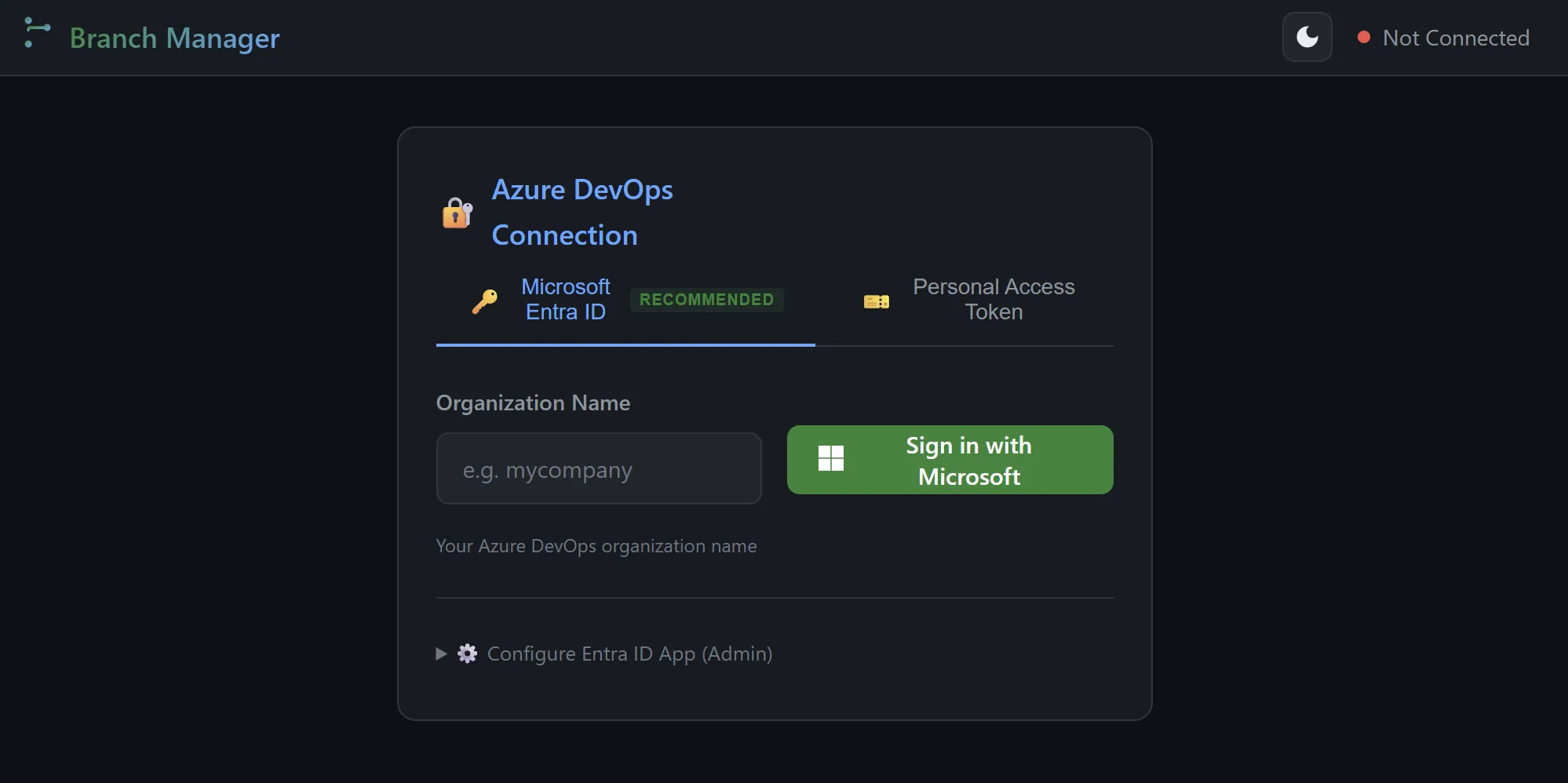
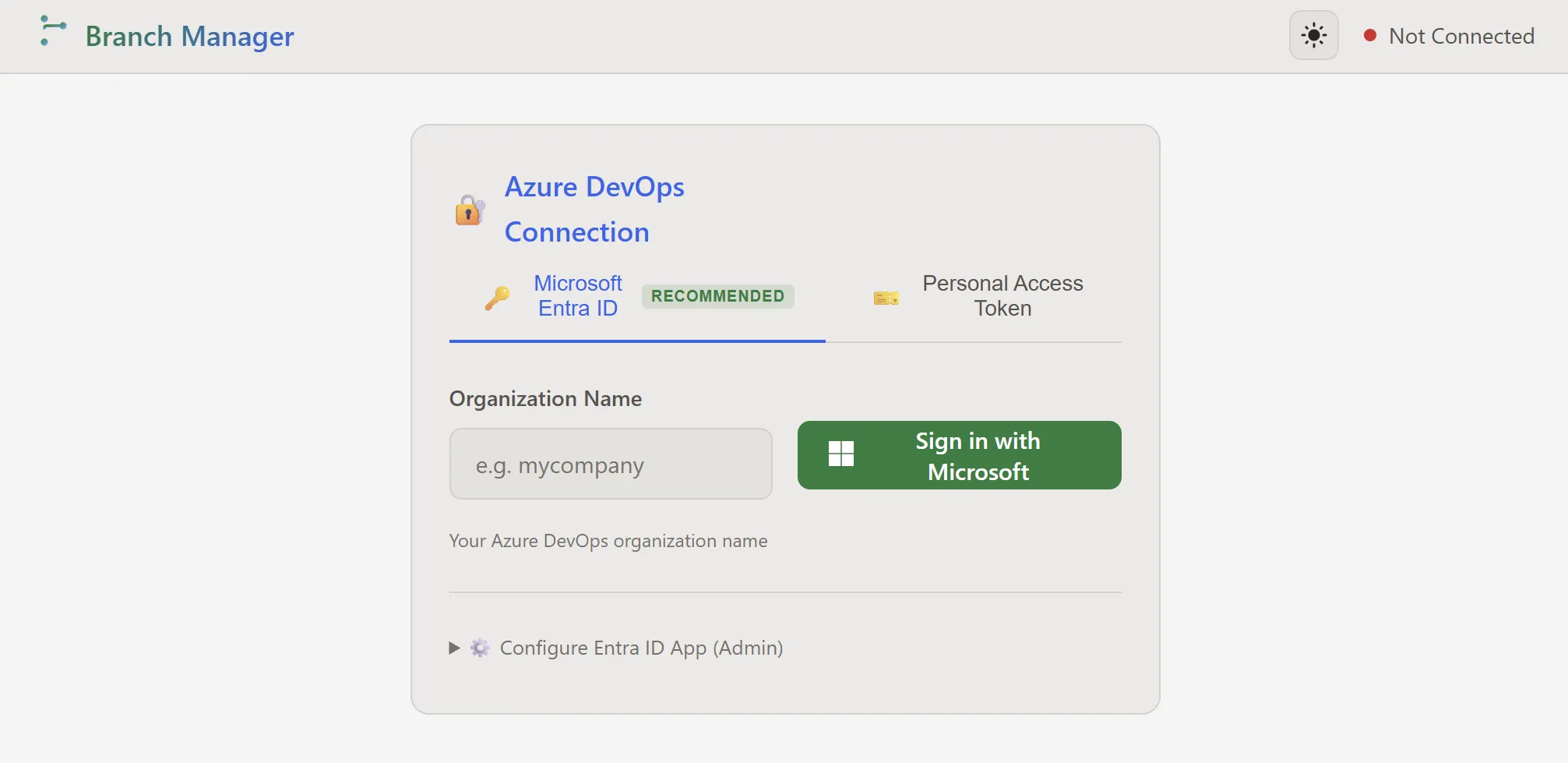
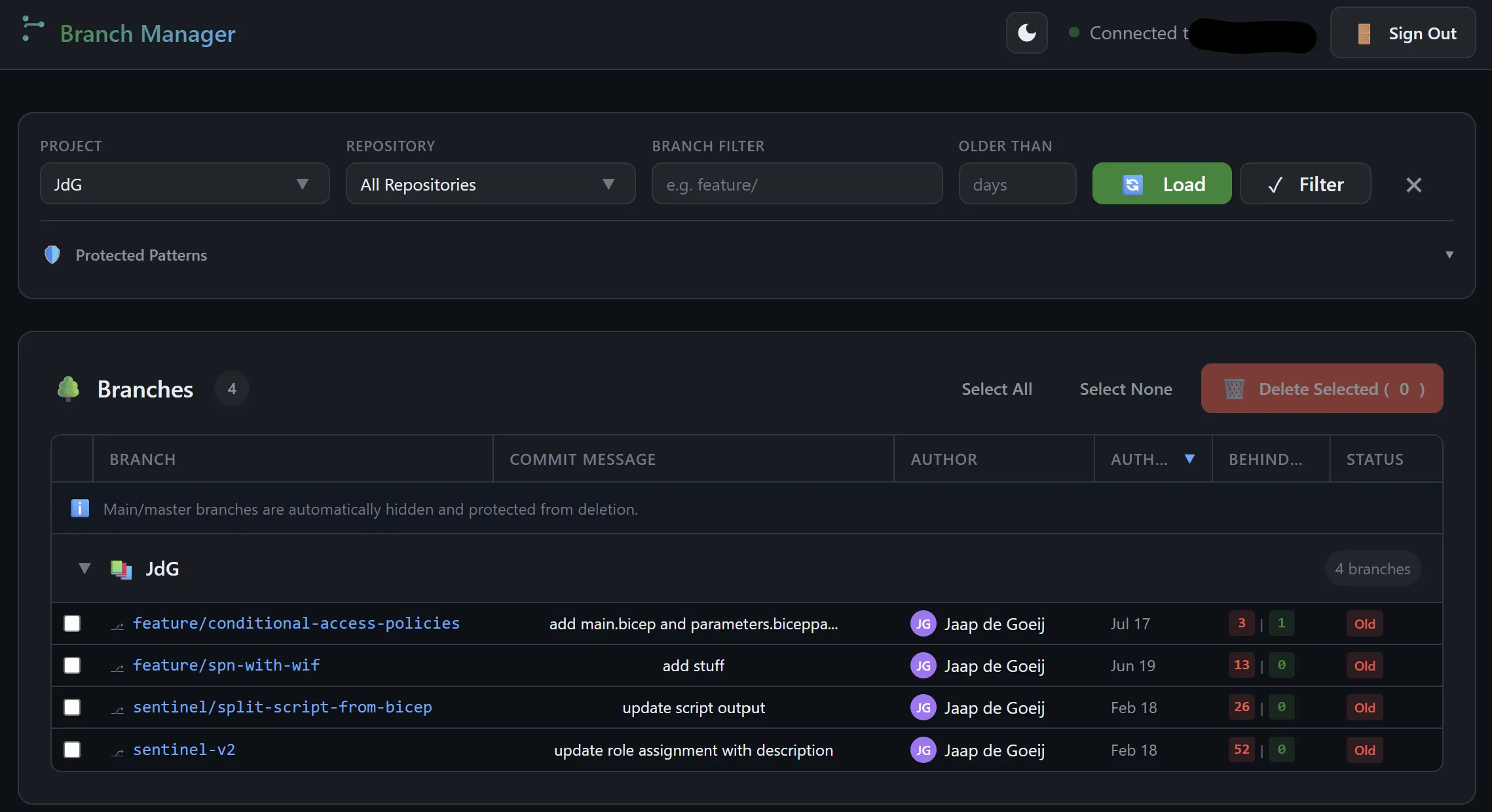
Branch Manager is a self-hosted web application. You run it locally or host it on Azure App Service, point it at your Azure DevOps organization, sign in, and get a filterable table of every branch across all repositories in a project.
From there you can:
- Filter by repository, branch name, and age so you can target
feature/branches older than 90 days, for example - Sort by last commit date or author
- See who last touched a branch and what the last commit message was
- Protect branches automatically: any branch with an Azure DevOps policy attached to it is highlighted and locked from deletion, so you cannot accidentally remove a protected default branch
- Add custom protection patterns, useful for protecting
release/,hotfix/, or any prefix your team uses - Select and delete in bulk, with a confirmation dialog that shows you exactly what is about to go
Authentication: Two Modes
Branch Manager supports two ways to authenticate against Azure DevOps.
The first is a Personal Access Token. This is the quickest option if you are running it for yourself. No app registration needed. You enter your organization name and a PAT with Code.ReadWrite permissions, and you are in.
The second is Microsoft Entra ID. This is the recommended option if you want to host Branch Manager for a team. You register a single-page application in Entra, grant it the user_impersonation permission on Azure DevOps, and your colleagues can sign in with their work account through the standard Microsoft login flow. This prevents the use of shared secrets and avoids using PATs altogether. Because everyone signs in with their own account you have an audit trail as well.
One important note: Entra ID authentication for Azure DevOps requires a work or school account. Personal Microsoft accounts do not work here. That is a Microsoft restriction, not something Branch Manager can change.
How It Was Built
I must admin: this is a vibe coding project. The first version was a PowerShell script and although it worked -barely- it was 335 lines of something I did not want to maintain. So I let Github Copilot rebuilt it as a proper Node.js web app.
The backend is Express. It proxies requests between the browser and the Azure DevOps REST API and handles authentication, rate limiting, and the branch lookup and delete operations. The frontend is plain HTML, CSS, and vanilla JavaScript without a framework. There is no build step and no bundler on the client side because I wanted a lightweight application. It is simple a new GUI for the DevOps API.
Lessons learned
That sounds nice and all, but my git history tells a different story. Let me share my 6 biggest bumps in the road:
- I had to rewrite the Authentication part twice. The first attempt used MSAL Node on the server side, which meant managing the OAuth code flow server-side and dealing with session state. How it worked? I don't know because I yolo'd Copilot to do it. Soon I discovered iot worked in theory but added too much complexity for a personal tool. I scrapped it and started over with
msal-browser, which acquires the Entra ID access token entirely in the browser using PKCE. The server never sees a client secret and never stores a token. Much simpler. And with examples! - Azure DevOps does not return 401 errors when a token is rejected. It returns a 302 redirect to a sign-in page. That sounds like a minor detail but it completely changes how you detect auth failures. A normal
response.okcheck passes on a 302. You get back an HTML login page instead of JSON and the error surfaces somewhere downstream in a confusing way. I had to add explicit handling for all redirect status codes and map them to a useful error message. - Helmet's Content Security Policy blocked MSAL's CDN. Helmet ships with a default CSP that locks down most external script sources. MSAL Browser loads from
alcdn.msauth.net, makes token requests tologin.microsoftonline.com, and needs those origins inscriptSrcandconnectSrcrespectively. None of those are in Helmet's defaults. Easy to fix once you understand what is happening, but the browser console errors were not immediately obvious about which policy rule was blocking what. - Helmet's
crossOriginOpenerPolicybreaks popup window communication. This one took longer. The default valuesame-originprevents the opener page from reading the popup's location after it navigates. That is exactly the mechanism MSAL popup flow depends on. Setting it tosame-origin-allow-popupsfixed it, but it is not a setting you would think to check first. - Tokens were appearing in request logs. The Express request logger I added for troubleshooting was faithfully printing every URL, including OAuth redirects that carry authorization codes and access tokens as query parameters. I added a sanitization step that redacts those parameters before logging. It is a small thing but it matters if logs end up in any kind of monitoring system.
- The Azure DevOps REST API surface for branches is fairly large. The refs endpoint, the commit details endpoint, the branch stats endpoint, and the batch delete operation all behave slightly differently and the documentation has some gaps. Copilot was genuinely useful here. It could reason about the response shapes and suggest the right request format for things like the batch delete, which expects an array of ref update objects with
newObjectIdset to forty zeros to signal deletion. That is not something I would have guessed, but Copilot brought me the answers.
Getting Started
Alright, let's get to the interesting part: Installation!
You need Node.js 18 or higher and (of course) an Azure DevOps organization. Clone the repo, install dependencies, and start the server:
git clone https://github.com/jdgoeij/BranchManager.git
cd BranchManager/server
npm install
npm start
The app opens at http://localhost:8080. For PAT authentication you are ready to go immediately. Just generate a Code Read and Write PAT and use is.
For Entra ID, follow the configuration steps in the README to register the app and add your credentials to server/.env.
Hosting It for Your Team
If you want to make Branch Manager available to your whole team, Azure App Service is the simplest option. The server/ folder is a self-contained Node.js app and deploys directly. The README covers three paths: Azure CLI for the fastest setup, the VS Code Azure App Service extension if you prefer a UI, and a GitHub Actions workflow if you want automated deployments on every push to main.
Make sure you add your App Service URL as a redirect URI in your Entra app registration and set REDIRECT_URI as an environment variable on the App Service. Without this, the OAuth redirect after sign-in will not work. The README walks through exactly what to set.
What Is Next
A few things are on my list.
The branch table currently loads one project at a time. I want to add a cross-project view so you can see stale branches across your entire organization in one pass. This is a larger API surface but the foundation is already there. I noticed there is a /api/all-branches endpoint on the server that does exactly this.
I also want to add a CSV export. Sometimes the right action is not deletion but a review with the team first. Being able to export the filtered branch list with last commit info and committer makes that conversation easier.
If you run into something that does not work or have a feature in mind, open an issue on GitHub. The codebase is straightforward enough that contributions are very welcome.
Happy to answer questions. Find me on LinkedIn.